HARU PHOTO CARD
Turn my photo into a PhotoCard!
CR80 · Portrait · 54 × 85.6 mm
Upload a photo from your phone and edit both sides at the kiosk. Preview the card before placing a print order.
Ask by email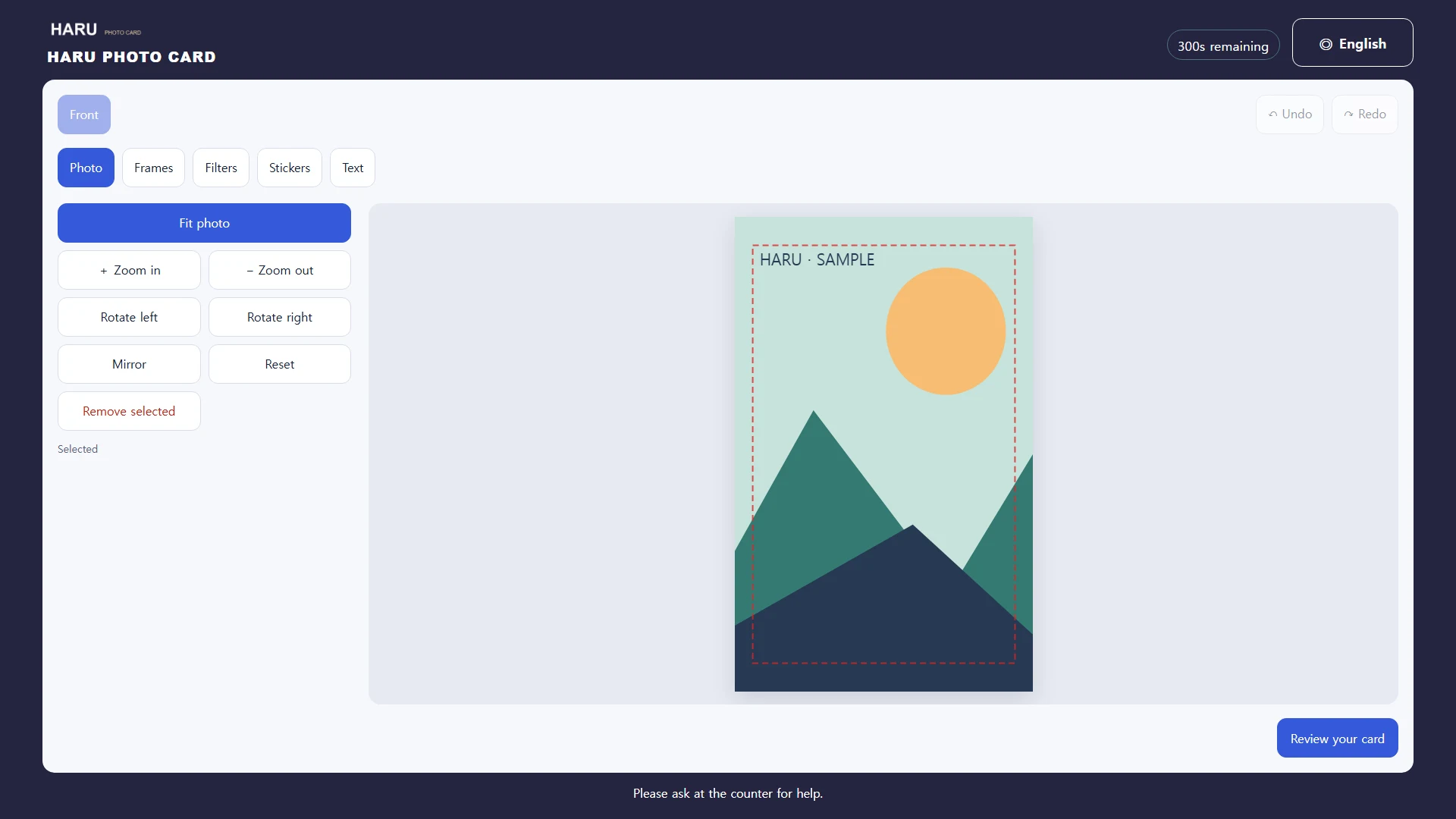
PhotoCard workflow
- Scan the kiosk QR code to upload a photo from your phone.
- Edit the front and back of the card at the kiosk.
- Preview both sides, then confirm quantity and price before ordering prints.
Crop, zoom, rotate and flip photos; add filters, frames, stickers or text; and undo or redo edits. Operators configure logos, card backs, frames and prices. Use a branded back or let customers design both sides.
Card features and operator tools
Crop, zoom, rotate and flip photos; add filters, frames, stickers or text; and undo or redo edits. Operators configure logos, card backs, frames and prices. Use a branded back or let customers design both sides.
Operator settings: logos, branded frames, card backs, prices, devices and languages
Operator tools and sample screens